
How to Install an InstaUp APK on Android
Installing an APK is short. Checking the file is the part you should not skip. Until the exact InstaUp file is verified, this guide explains the Android process without pretending that every file with the name “InstaUp” is the same.
Check before opening the file
- Use a source you can identify. Do not follow pop-ups or “mirror” buttons that send you through surveys.
- Check the version, size, publisher, and checksum if provided.
- Scan the file and read the permissions it requests.
- Keep a copy of the source URL so you know where the package came from.
Install on Android
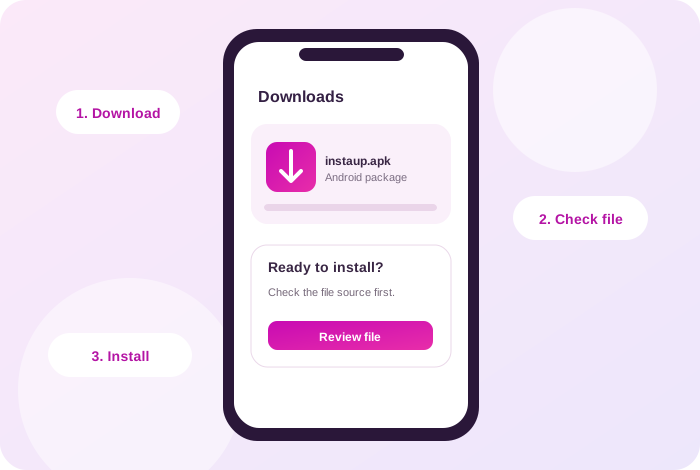
- Download the verified APK.
- Open Downloads and tap the file.
- If Android asks, permit the browser or file manager to install that file.
- Review the app name and permissions and tap Install.
- Turn the install permission back off after you finish.
If the installation fails
The file may be incomplete, incompatible with your Android version, or signed differently from an app already on the device. Delete a corrupted download and verify the source again. Do not disable other security settings to force an uncertain APK onto your phone.
The InstaUp download page will show the exact file details once they have been verified.